 |
|
 |
|
|
 |
 |
CBT Cafe > Fireworks > Selections & Masking Fireworks Masking - Silhouette effectStep 1. Begin by opening an image or graphic you'd like to apply this effect to.
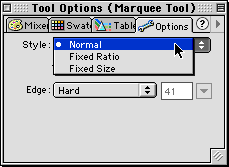
Step 2. Select one of the Marquee Tools: Rectangle or Oval Step 3. From the Marquee Tool Options select your style Normal:
Allows you to freely click and drag out your selection
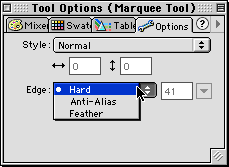
Step 4. Next, select your style for the edge Hard:
creates a sharp edge
|

|
|
|||||||
 |
||||||||||||
|
 |
|
|
|||||||||


| Home | Dreamweaver | Fireworks | Flash | Photoshop | Elements | PowerPoint| Ebay | QuickTime Pro | Flash 5 CD | Fireworks MX CD | QuickTime Support | Contact Copyright © 1999-2015 CBT Cafe, All rights
reserved CBT Cafe | Multimedia Learning | Interactive Graphics
|